
Over the last few weeks, I’ve put out a few articles about the easiest ways to teach piano remotely, an article to send to parents to help with student retention (send them the URL), and 5 long-distance games (published in 2104). The comments that teachers have left on these articles and the emails I have been getting contain such helpful tips that I wanted to make an official place where you could share your “best ideas” for teaching online. And a place where you can get all kinds of new ideas to improve your current setup!
What is a “Best Ideas” session?
There’s a special “best ideas” session that music merchants do at NAMM where anyone who has a helpful idea can come up to the mic and share that idea. But the catch is that they must share it in only one minute! Music store owners will run up to share marketing ideas that have worked for them in this very active and exciting workshop session. Audience members will write down all the ideas and then at the end, they will vote on the best idea of the session.
Over the years at various conferences, I’ve adapted this for piano teachers and the session is such a huge success because all piano teachers walk away with a long list of ideas to use in their teaching.
So, we’re going to do a special “best ideas for teaching online” with this post! There’s not time limit (though we do encourage you to be concise) and I’ll be selecting what I think are some of the best ideas to showcase on this post. But the best reward is that everyone who reads this post will come away with lots of ideas for improving their online teaching. This will be one of those posts where the more you come back and read the comments, the more you’ll learn!
Here’s how to participate in the Best Ideas session:
-
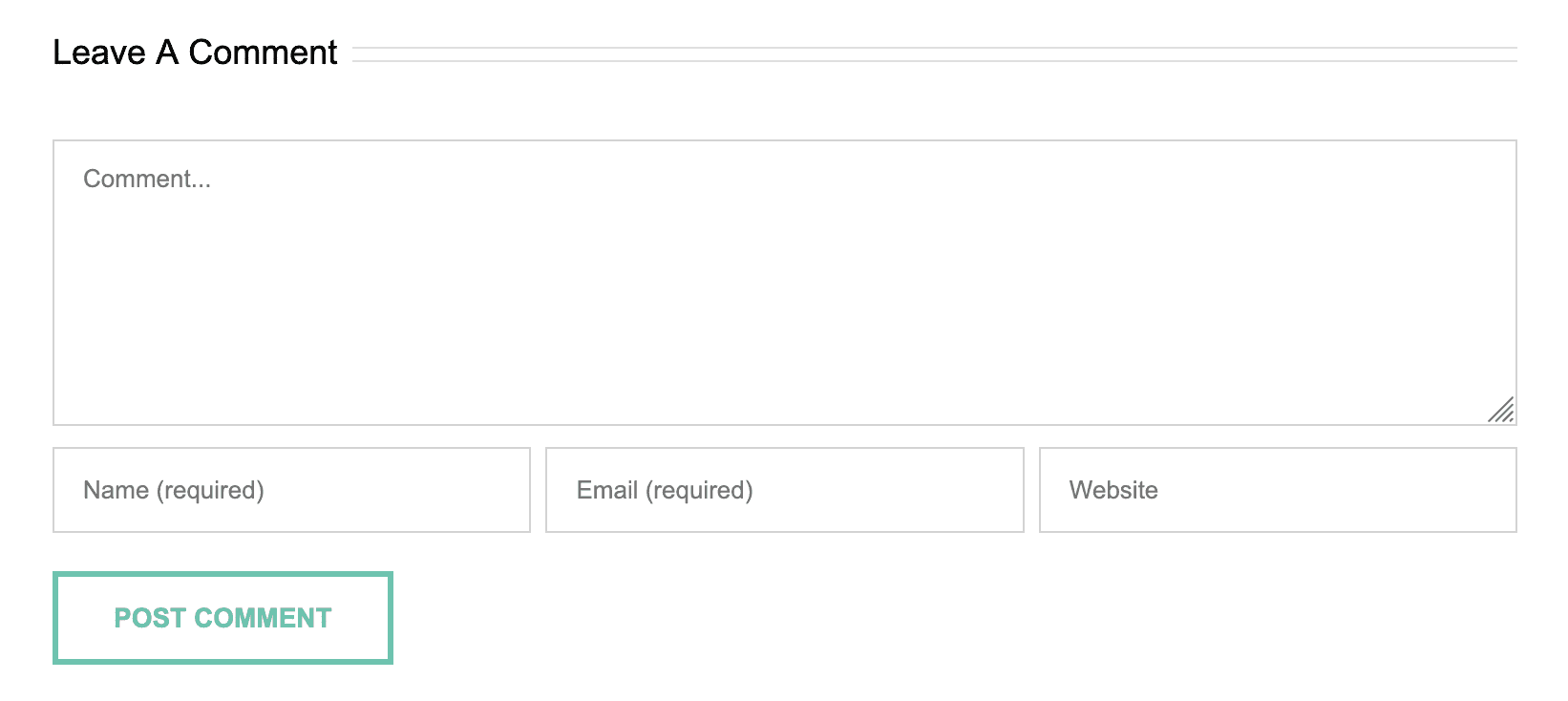 Scroll to the bottom of this page and you’ll see a place to leave a comment. The first word on your comment should be the category of idea under which your idea falls. The categories are:
* Technical – This includes tips for camera placement, mic recommendations, Zoom/Facetime platform ideas, etc.
* Game – Any activity that helps engage the student
* Curriculum – Music the is especially useful during this time
* Technique – Ideas for teaching technique remotely
* Interaction – How to keep kids engaged, ideas for engaging younger students or students with attention challenges
* Self-care – Ideas for best posture, less back pain, etc.- Now, after that category, type your best idea.
Please keep it super concise and very clear so that teachers know exactly how to use your idea. 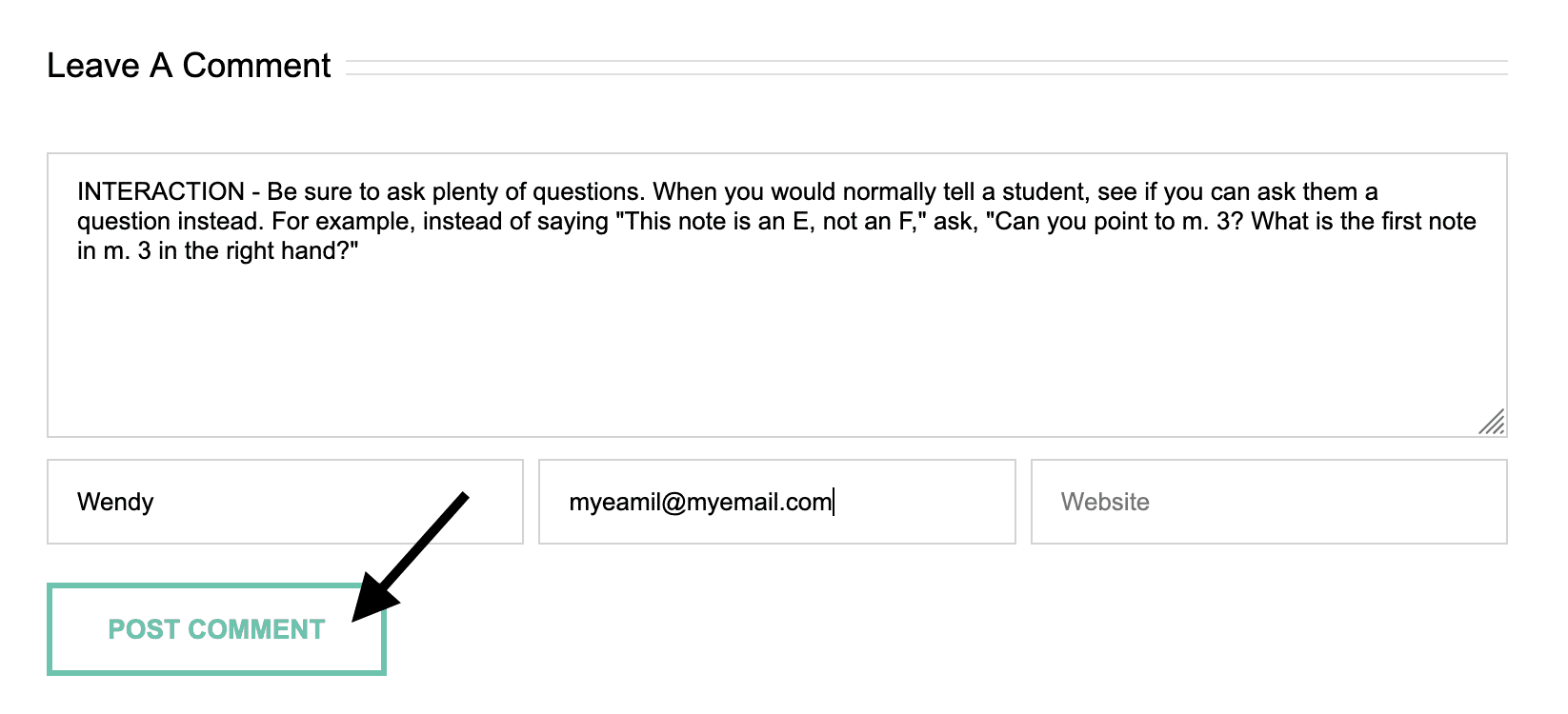 Click the “post comment” button and your comment will get added!
Keep in mind that if you have never posted a comment or a review on ComposeCreate before, it will need to be “moderated” which just means approved. This is to help us keep the website clean and free from spammy comments. So if you don’t see your comment right away, but you did click the “post comment” button, don’t fret. It will get approved and you’ll see it soon after that.- Now, take a moment and read all the other comments teachers have posted. Check back periodically to see new comments. I’ll highlight some of the best (and concise) ideas in this blog post, so it will stay fresh! Please don’t be offended if your comment is not highlighted. I can only choose a few and teachers will be reading all of the comments anyway, so I know they will see yours!
Here are some of the “Best Ideas” so far (revised 4/13):
- SELF-Care – Use a desk swivel chair instead of piano bench.This way you can turn your chair instead of twisting your body to see your student on your laptop. ~ Valerie
- TECHNICAL – Someone mentioned distortion using Bluetooth headphone. This is a very real possibility as bluetooth headphones can have a lot of lag. There are some very good blue tooth headstones and buds on the market with excellent response and distortion rejection, but these are quite expensive, the wired type are always better when it comes to cost vs performance. [from Doodal Jay]
- TECHNICAL – A clarification about the free Basic Zoom account– as long as your meeting is one-on-one, there is no time limit. The 40-minute time limit applies if there are 2 or more participants besides yourself. As for sound quality, Zoom has a setting called “Original Sound” which allows you to get much higher quality sound. Here is a YouTube video that explains it well. [from Debra Sostrin]
- SELF-CARE – Use an ironing board as a standing desk for my laptop when I’m doing online lessons. I did it this week and it really helped! It elevates the laptop so it’s higher than the piano so my students can see both my hands and my face all at the same time. I can also recommend that my students use an ironing board to elevate their laptop or iPad as well (almost everyone has an ironing board!). I was starting to get really bad neck pain last week from twisting to see the camera (and have the camera see my hands) at odd angles. This piece of advice has helped me so much! [from Amber Saldivar]
- INTERACTION – Be sure to ask plenty of questions. When you would normally tell a student something, see if you can turn it into a question instead. For example, instead of saying, “That first note in m. 3 is an E,” say instead, “Can you point to m. 3? What is the first note in the right hand?” This may take a little more time, but the results will be far, far superior in terms of student engagement and also learning and retention!
I know there are lots more out there, but I just wanted to get it started.
Ready, set, share your ideas in the comments below!


Hey everyone! This is where you’ll leave a comment with your best idea. If you are the first comment, don’t be bashful! We need all kinds of ideas! ????
SELF CARE — Use a desk SWIVEL CHAIR instead of piano bench.
This way you can turn your chair instead of twisting your body to see your student on your laptop.
SELF CARE — Use a desk SWIVEL CHAIR instead of piano bench.
This way you can turn your chair instead of twisting your body to see your student on your laptop.
ORGANIZING (Question) – The organisational aspects of online teaching have been driving me a bit nuts. I’ve just put all the music books I’ll be needing for each student in a 30x30x30 cm box with handles (swiped from our IKEA bookcase) separated by cardboard strips for each day and then post-it notes for each student. I’d love some ideas on writing notes for students, homework assignments etc during the lesson – I find I’m so busy with other stuff I don’t do much of this, then forget what I wanted to tell them……
INTERACTION — I have a Beethoven action figure, and for my littlest students its helps to play a game of Mr. Beethoven says (like Simeon says) to get them to find details in their new piece, or play stepping or jumping patterns to get them ready to play steps or jumps in their pieces.
INTERACTION- use puppets or toys to ‘ speak’ or ‘watch’ young students. Put them up close to camera so they fill the screen. Works especially well with my Piano Safari students who connect specific techniques with toy animals I use in my studio
MUSIC – Using interactive methods are good for this time i.e. Supersonics, Joytunes, Sproutbeat, Carol Matz as you can assign work ‘offline’ as well as discuss current repertoire being worked on during live time.
Game – I have used Dogs and Birds approach with some of my v young pupils and have continued this online.. I have a dog toy, bird, goose, cat, ant etc and hold one up for them to see on screen and then they play all of those notes across the keyboard as fast as possible as a warm up note finding exercise. I use a pop up toy clown puppet on a stick to also communicate to them to play the notes forte, piano or mf,,,,f for the clown fully out, mf for half and p if he is hidden and asleep! It engages them well and gets them looking at the screen.
INTERACTION—We talk a lot about changing up activities with young children. I have found this important to do with even the older students now that we aren’t in the same room. We play something at the piano, we do an “off-bench” type activity; play and discuss something at the piano, then do another “off-bench” type activity or game. Rinse and repeat. I have also discovered they still like to do rhythm cups with a family member whom they have taught how to play and I watch and listen. I do a screen share with the PDF and play the track through my computer mic.
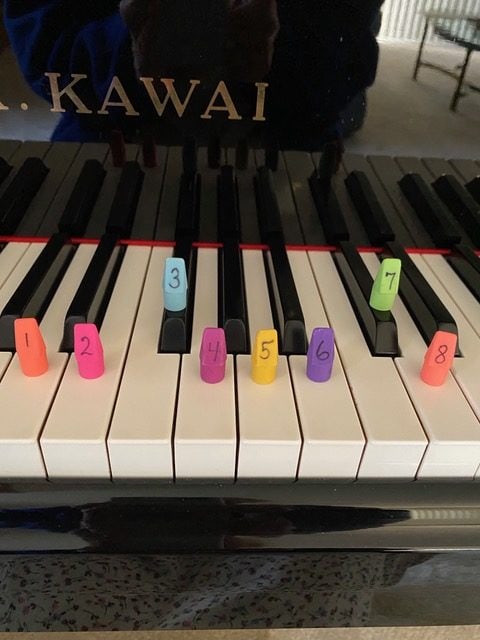
GAME – Here’s one game i’ve come up with: The Pentascale detective game. I have pencil top erasers in multiple colors numbered 1-8. #1 and #8 are the same color, representing the tonic. At lessons i’ve used these to have students construct pentascales or octaves by placing them on the piano keys. They seem to be able to find the whole and half step pattern much more quickly this way as beginners.
Over video, I start with a pentascale that is correct for review with 5 erasers on the keys. Then I move the camera aside momentarily, choose a different pentascale but have a couple of the “erasers” out of position. Move the camera back and ask them to be the pentascale detective and tell me what to do to fix it. They tell me which erasers to move and I move them. Once the student feels the erasers look right, by sight, I have them do an audio check on their piano. I’ve found this drill holds their attention well for several pentascales or scales.
After that I have student choose favorite pentascale and we do the question and answer game as you suggested. It’s been fun so far.
Here are pictures:
TECHNIQUE – To help with technique (posture, hand position, etc.), have student look at themselves in their screen after you demonstrate. They LOVE looking at the screen and will copy. (Caution: be sure that their image isn’t flipped in the Advanced settings).
Educational. How do tpu reach a room full of beginner piano students on line? Any chrome book apps that would help the students during this break from school instruments?
INTERACTION – Host a “Virtual Studio Class” on Zoom! I’ve added these to my studio for the past 2 weeks and the kids are loving having the opportunity to perform for each other and play a game. One week I sent all participants a list of 20 different rhythm patterns and asked them to create a tic-tac-toe board, placing 1 rhythm in each box. During our class, I played the rhythm patterns and the first student to get a tic-tac-toe won! They loved it. I let the students “clap” and give a “thumbs up” for each performer & they used the “chat” feature in lieu of “compliment cards” – Worked really well!
Kerry Beaumont re:question
I’ve been using the voice recording option on my notes app, (right after the lesson so I don’t forget) then send the written assignment electronically (what’s app, text, email, etc). Then I also send it to myself and print it off so I can easily refer to it next lesson.
GAME: The “where’s Waldo?” And “Barely Bingo” that you shared here https://composecreate.com/long-distance-piano-lesson-games/ have been huge hits!
Here’s a slight adaptation: I couldn’t see them point to their music so I had them make the music symbols in the air 🙂
Technical: I found the lag in using video chat not conducive to learning, and my students and their parents were getting frustrated very quickly. So I’ve switched to video lessons. (I think both parties need high speed Internet for any video chat platforms to work the best??) My students send me videos of their exercises/songs (1 video per song) and pictures of their theory pages, and I send feedback with videos/audio/text. We can always video chat or even a phone call if needed but so far this has worked well. I ‘mark up/edit’ their theory pages if needed and send a picture back.
Also makes for flexible scheduling, there’s no particular lesson time, just a lesson day. I ask them to send videos the evening before or morning of their lesson day and I work on their lesson ASAP and send feedback.
GAME – I’ve been posting a riddle each day (Monday through Friday) on my Facebook page. I also email it out to students and parents – and other people in my life who might enjoy a musical riddle. They are just little rhymes I make up myself. I tell them they can guess in the comments, text me with the answer, email me back or just tell me at their lesson. I’ve had quite a few participate and they’re very excited when they get the correct answer. I write down who participates in each riddle and who has the correct answers. I plan to reward in some way when we’re back to our brick and mortar studio.
Here’s a few examples:
Easy one even non-pianists can figure out:
No locks to open,
But so many keys,
What instrument am I?
Tell me please.
Answer, of course, is piano.
Trickier one requiring some research(This one is specific to March 18th):
Today in history I was born.
I wrote in orchestral and operatic form.
Say my name and what a composition of mine was.
Here’s a hint:
A honey of a creature who likes to buzz.
Answer is Rimsky-Korsakov, Flight of the Bumble Bee, and yes, five students did take the time to do the research.
I think I’m having as much fun as they are honestly.
GAME – I’ve also used the Bingo template I downloaded from Colourful Keys (www.vibrantmusicteaching.com). Just plugged in my own activities and emailed them to students to print out. Again, a big hit – one of my students completed the entire Bingo sheet in just a few hours! I used some of the ideas already on the Bingo cards that came with the download as well as adding some of my own, such as:
Look up a fact about the composer of one of your pieces and write it on the back.
How many measures are in your recital piece or one of your favorite pieces?
Tell a family member or friend your favorite thing about taking piano lessons.
Make up your own musical activity. Write it on the back.
Also threw in one for some meditation – Sit quietly for 2 minutes. Listen. What did you hear? Write it on the back.
INTERACTION – I use a small sound effects toy with an “applause” button as well as an Easy Button. Keeps students listening and happily engaged.
Repertoire: Have your student send in a video of their pieces BEFORE the day of the lesson, so you can watch it and get a much better feel for how it sounds. The sound quality will be better than the online video platforms. You can relax and watch it without the extra pressure of trying to decipher what you are hearing.
INTERACTION: I figured this would be the right time to offer up a 30 Day Practice Challenge to my students. This gives them routine, something to do each day, blesses the parent with music each day, etc. They are working toward a prize of their choice at the end of quarantine and the 30 days. I am amazed at how much the students progress when they have consistent practice and I sing their praises during their lessons!
CURRICULUM: I have started using the “Repertoire” section in My Music Staff finally. I can record and keep track of what each student is playing so that I don’t have to keep asking them over Zoom! And there is a place to put notes. Parents and students can log in and see what you have listed and your notes. There is also a feature on My Music Staff for “Online Resources”. I have uploaded all my ComposeCreate and Piano Pronto purchased “Unlimited Studio License” pieces. I assign at least one to each student so that we have a piece where we BOTH have the same music! And I can easily screen share new pieces that I have downloaded.
INTERACTION
Great ideas above! Mine is a question more than a best idea. What are suggestions for a replacement to the scheduled recital. I’m almost sure the May 21 recital date won’t happen. I’m teaching with Skype and FaceTime. Anyone have suggestions on how I can do something performance wise for the kids and their families?
Ironing boards are great, but one of my parents also uses a step ladder from his garage! I totally agree with Christie Davis – I’m anxious to hear ideas about a Spring Recital. I also use FaceTime and Skype with about 10 students.
Interaction: my school mascot is a bulldog. I bought a Head of a bulldog at a clearance store in the fall. I took pictures of “him” sitting at the piano and he had a sign telling them to PRACTICE! But on their first online lesson, I was wearing it and they weren’t expecting to see that! They all giggled! Next, I am going to wear bunny ears headband! Helps brighten their day!
Interaction: I place my music stand at the camera so I can look at them and the music at the same time. I am sitting at my piano so I can easily turn to demonstrate.
Re:recitals…how about parents video their children playing their recital piece and post it on Facebook or whatever platform works for you? They can dress up and state the name of their piece and bow and everything. ????
TECHNICAL AND INTERACTION
I have to agree with Davina! My Music Staff is an incredible program and it allows you to do so many things! If you don’t have it, seriously consider it! They have addressed using Skype, FaceTime and Zoom, allowing you to connect right from your calendar to the program you are using in addition to all the things that Davina mentioned!
I have found that Zoom is working the best for me! I went ahead and paid the $14.99 a month. It allows me to have “group” games, like live Bingo. I use Mayron Cole’s free download: https://www.freepianomethod.com/games.html I follow her and she gave permission to do this. She has three levels of games. I copied the game cards and downloaded them to the Online Resources portion of My Music Staff. That way, each student can print out their own cards. Then, I announce a day and time for the game. I did a session of PIANO BINGO yesterday with my late elementary students on ZOOM. It worked great! They were all playing at the same time, they played against each other and we had multiple winners! Additionally, I love that ZOOM allows me to use my iPad or my iPhone as a webcam. By doing that, I can switch to an overhead view of my piano with just a click! It is amazing! It also has a built in white board. I use that to draw things that I am trying to explain. I’m not a very good artist, but it helps clarify things to students. I am just starting with all of this, but I believe you can even record your lesson so your student can go back and review it if they want.
Technical – One of my parents set their device on a tri-pod at the end of piano. It works great as it is high enough that I can see the entire keyboard along with the student and their hands.
Games – I love using rhythm cards – ones that are seasonal phrases and notes to clap. These are small enough that I can hold them up to the screen and they can clap and say the phrase to the rhythm shown.
Organization – What has helped me stay organized and track each students assignments from week to week is by using a legal pad. I write the date at the start of each week and the students name. As I teach I jot quick notes creating their assignment for the next week. At the end of the lesson I ask them to get their assignment pad and I dictate what to write down. It only takes a minute or two and by having them write it down I feel they embrace it more than if I sent them an email. It also keeps a history of the lesson assignment for when we all get back in our studios.
I’m using zoom which has a whiteboard feature. Yesterday I clapped a rhythm for students, had them clap it back, and then either write out the rhythm from their side on the zoom whiteboard, or dictate to me what note values to write. I’m also using my swivel office chair while sitting at the piano and my adjustable bench to hold my laptop which is my camera.
Organization/curriculum: I have created a Dropbox folder for each student. In it is a lesson recap/assignment sheet with any pieces assigned and what to improve upon. PDFs of their music is in the folder, too. Any theory worksheets as well. When it comes time for their lesson, I just open the Dropbox folder and I can see EVERYTHING in one place. I can also immediately update the lesson recap with new assignments and notes. I also include a sightreading excerpt for the next lesson. In the public space of my Dropbox page are links to listening of the week and this month’s Piano Explorer. Bonus, you can track activity in the Dropbox and see how often it’s been accessed! It’s working great so far! And JoyTunes made the deluxe version free for everyone, so I’m taking advantage of that by assigning home challenges!
I don’t schedule lessons back to back. I need a few minutes between each lesson to process that lesson and get ready for the next. Also, I think it has already been said that organization is important. I like to think I am usually organized but I have had to take that to the next level. I am also trying to ask less of my parents than I did when I first started online lessons. Many of them are working from home, trying to home school their children, take care of little ones and keep it all together.
Interaction – I periodically ask students to make a video playing a harder piece then they send it to me so that I can review their “performance”. This not only allows me to hear their piece polished and without lag, but it begins the learning curve for the student to submit online applications for either scholarships, or music camps, or college.
Technical…I use the Zoom “waiting room” option so that my next student doesn’t interrupt me on Zoom until I “admit” them.
I also found Annotate.net this morning and signed up for a free account and a Google Chrome “extension”. That way, when I “screen share” during Zoom lessons I can circle, star, underline things in bright colors on any webpage.
INTERACTION: One way I’ve connected to kids online l is to ask them (at the end of the lesson) if they want to show me something from home, e.g. a favorite toy or a pet. One little girl, with her mom, showed me around her bedroom, demonstrating how she could climb to the top bunk. Students miss my dog so I hold her up to the screen and wave a paw. Although this is not a teaching tip, it really helped maintain a personal connection.
I created a google document with a simple format for giving assignments and instruction to students. Then I copied it for each student with their name. I fill it out during lessons then email it to the parent after each lesson
It gives them and me a reminder of the weekly tasks to complete
I make a video (Youtube) every week for my students and assign a musical task for the week. The task has 3 levels so that students learning at all levels can master at least a part of it. I award “music money” in $25 increments for each task completed and the students are “banking” the music money they earn on a chart here at my home studio. When they fill the chart we are scheduling a “Pizza Party Picnic” in the park for summer together with a “Music Olympics” event. Music Olympics is a favorite group class event around here. As an Example: This week Musical Task Level #1 was answer an “about me questionnaire” and send a picture of him/herself so that I can feature it in my weekly videos and we can stay connected as a music studio. Tasks #2 and #3 were to identify half or all of a list of musical terms and symbols in any sheet music and circle them. They can show me these during their lesson or send me a picture of their finished work. I also include a piano piece on youtube for them to listen to and I even put in a 2 minute interview with a modern composer this week. I’ll use the music and the composer as a quiz for a musical task in a future video. I call this “The Music Money Masters Championship.”
INTERACTION
Christie Davis – I’m planning a Zoom recital. Family members can gather in the same room to watch each student play. Everyone can still applaud, and I think they can leave positive comments on the screen.
I haven’t read every comment so I apologize if I am repeating. I’ve been using Marco Polo for my interactions with students, I can post a video or a picture and they can see it when they get online. I have one student who leaves me a practice video almost everyday. I don’t meet her live but look at them later. I try to do a live session once a week. This week I gave them crazy challenges like play a song kneeling down. There are limitations as in every platform.
QUESTION
I’m looking at the “Original Sound” option on Zoom. Does “original” mean I want to use my own microphone instead of the computer’s microphone? Would using “original sound” make any difference in what I’m hearing from my student? I’m a bit confused.
Recital
I haven’t fully planned my spring recital yet, but my students were supposed to play for a nursing home last month. Since this was obviously canceled, I’m having all my students record their pieces and send them to me. I’m making a “movie” of their recital to send to the nursing home as well as to my piano families so they can still enjoy the recital. The nursing home is thrilled as are my students to see “their movie”.
RE: Teresa’s QUESTION on Original Sound –This video explains the answer far better than I could: https://youtu.be/50NoWIiYECA.
Short answer—- Original Sound from your Microphone is the BEST OPTION, and Original Sound from your Computer’s Microphone is the next best option!
GAME – I play “treasure hunt” with my students. I pick a note on a page and they have to guess the note by asking yes/no questions. Examples: Is it a half note? Is it staccato? And then we switch roles. It keeps them engaged and helps them notice specific aspects of the music.
GAME – “WHO AM I?” On my dry erase board I write a musical symbol that they need to review (bass clef, quarter note, forte, piano, staff, etc) but don’t show them what it is. Then I give them clues in first person, one by one until they can guess. At the end I flip the board around.
GAME – “MFPA FLASHCARD SHEETS” – Ask families to order a pack to use in their homes. *play bingo with the yellow and blue cards” *do eartraining bingo with the purple cards https://pianoadventures.com/publications/my-first-piano-adventure-flashcard-sheets/
GAME – “BE THE TEACHER”: Get your favorite stuffy and teach them the key names or review music vocabulary and symbols.
Technical – Is the Zoom setting of “original sound” in prior comments a feature available on the free Zoom version? Or, is an option only available when you pay?
TECHNICAL – Using an easel is helpful to hold up your ipad or phone at different heights without the fear of it falling down or over. You can also adjust the view by putting books behind it (as many as needed) to get what you need to see you and the piano keys.
Self Care-I have truly enjoyed dressing up just a bit before lesson time. My subbing job “went away” so much of my time is spent in a T-shirt or sweatshirt and jeans. Being sure my hair is done, makeup on, and I’m dressed professionally makes me feel good and I hope it makes the students feel like this is IMPORTANT to me because it is!
GAME – Instead of their regular practice sheet, each week I’m emailing students a “Music Mission: Possible” Special Agent Report. It contains a “Practice Mission” (songs to practice), a “Homework Mission” (theory worksheet), “Music Missions” (extra activities like watching piano videos on YouTube, or playing a song over the phone for Grandma), a “Secret Mission” (non piano related, and written in a simple code), and “Mission Gear” (something fun to wear at their next video lesson, like a goofy hat). A little extra fun each week!
TIME SAVER—Just this morning a parent recommended that I download a scanner app for my phone so I can take a picture of a written assignment page and email it directly to the parents. It is super easy and all the parent has to do is print it from their computer at home. Prior to this I had texted the assignments, but this was a cumbersome activity and required the parent to write out the assignment at home (which they may forget to do).
TECHNICAL: I am not tech savvy and using FaceTime with a suction cup holder for my iphone taped higher up to an easel so I can get all the piano keys in the picture. The phone kept falling forward so a very observant student suggested using an elastic to hold it in place – It works VERY well. Technical equipment hard to find and may require leaving the house. Duct tape, Painters tape, elastics work well.
ORGANIZATION: I am a traveling teacher who goes into students’ homes. I have a binder for each day I teach, with a tabbed section for each student. I have a supply of preprinted, empty assignment pages for each student’s lesson. And I use a sheet of carbon paper (one sheet per student per quarter) in order to make a copy for myself to keep and review if a student has any questions during the week. Now that I’m not going into their homes, I don’t have to make a carbon copy, I just send a photo of the completed assignment sheet to their parents to print. The form is a big grid that fills the page, with the days of the week columns listed at the top and substantial grid rows for their assignments (Scales/Exercises, Transposing Tunes, Lesson Book, Performance Book, Old Faves/Recital Keepers, Ear Training.) They can check off whatever they’ve practiced throughout the week, so I can see where their practice time is going. By the way, there’s no way I get to everything every week, but the form itself reminds me to circle back to topics I might otherwise forget.
VIRTUAL RECITALS: Joy Morin (Color in My Piano website) has posted a resource/example on her blog of a virtual recital (Jonathan Roberts on Virtual Recitals for Students). Check it out, it’s full of ideas and Jon’s experience of setting it up on YouTube. https://colorinmypiano.com/2020/03/27/teacher-feature-jonathan-roberts-on-virtual-recitals-for-students/
I do not like the fact that many times my screen freezes on Skype. Or the picture is blurry sometimes. I can’t see the answers on my students’ theory pages they have written. I have never used Zoom or Google Duo. I am new to all of this. Has anyone used all 3 formats, and found out which one is best? Are they user-friendly? Learning all these new technologies is really overwhelming for me, in addition to all the other things that demand my attention on a daily basis.
Thanks!
If you have a tripod and are using an iPad or tablet, you can pick up this holder for it from Amazon. It has a ball joint some that you can easily swivel the iPad; you can easily raise and lower a tripod. It has an easy-to-use clamp to quickly insert or take off the iPod. It is also very stable because you can widen the legs of the tripod, and a tripod is used to holding a heavier weight than a music stand. Not too expensive either!
https://www.amazon.com/gp/product/B07HR718KV/ref=ppx_yo_dt_b_asin_title_o02_s00?ie=UTF8&psc=1
GAMES; Carol mentioned rhythm cards (March 31), which I love! I also do note-naming flashcards, but instead of asking “What is the name of this note?”, I say, “Give me a word that begins with the letter of the note that you see.” You’ll quickly discover your most clever students, and which ones need encouragement in the creativity department.
ORGANIZATION: My preferred platform has been Demio, which offers great support! In the “preparation room”, I can download youtube videos several days ahead of time and, without any fuss, during the lesson share an ideal performance of what my student should be striving for. I ask for my students’ observations, and lead them to more critical listening. This usually fills up 5-10 minutes of the lesson time, which I like to schedule near the end, so that I can send the student off with a word of encouragement. Since the entire Demio lesson is recorded, I send it to the student right away for her/his review of it throughout the week.
RECITALS: I asked each student to prepare a recital for just their own family members. They prepare the refreshments, set up the chairs, set up the video device, dress up, play, take their bows, and serve refreshments. They can send the video to me, to grandparents, etc. I think they will appreciate the preparation that goes into a recital, even if they are the only performer.
GAME I used a blank pad and felt tip pen for a composing activity based on Pictionary. It was fun guessing what we were each drawing, I did it first and then we took turns to draw and when the other one had guessed they made up a motif based on the drawing (first one had mountains and trees….). It was fun – we could have gone on to stitch the ideas together but ran out of time as I just thought it up on the spot to revive a flagging lesson with a pupil who loves the creative composing things.
Organizing:
I use Evernote for student assignments. I have done this for years, but it is especially helpful right now. I keep a Student Practice Notebook and a Lesson Planning notebook for each student. The Student Notebook is shared with the student. They just have to download the free app, create an account (also free) and accept my invitation to join my notebook. Once they have done that everytime I update the notebook it is updated in their app as well. This has been great especially with online lessons. I am able to not only update the notebooks right then and there but I can also record an accompaniment to their piece right into their notebook for them to play with during the week. I can also put videos and other recordings from online or ones that I have made into the notebook. It works so well. I have heard of other teachers using Google sheets which I am not familiar with but I think could be helpful as well.
I place 5 -6 musical terms flash cards , each on a different 1/4 sheet colored paper. Then I give definition and they identify the correct answer by telling me which color the correct card is on. Can also be done with numbers or letter replacing the colors. This can also be reversed and the student can describe the term to me and I find correct answer.
I use rhythm cards to create 2 simple/ complex rhythm patterns of 1- 2 measures long. They are visible to student. Then I play the pattern on my keyboard drum kit . The student will then choose the pattern that they heard.
My IT tech son and I spent a few hours on the weekend exploring various platforms and microphones to see what works best.. We compared Zoom, Jitsi, and Google Duo. ALL of the platforms are set up to communicate the human voice well – they are NOT set up to communicate piano sound! We felt that Jitsi was the best – but Zoom and Google Duo worked OK. I like Jitsi because it is browser based – you just type in the address and I can set my own password that is the same each time. That way I don’t need to communicate with each student each week. (For Apple devices, you have to download an app) And it’s free.
I have a recording microphone . . . . it did not pick up sound very well. I use an external microphone used for gaming and use earphones for better sound.
It REALLY helps if you have your computer device hard wired (as opposed to wireless) to avoid computer lag. Some browsers work much better than others – Safari and Explorer are dreadful, Firefox and Chrome work better.
Technical – I agree with sitting in a swivel chair. And then you can use the bench as a desk at a right angle with the piano. You can have all your things you need laid out, and magazine boxes with music underneath, and no one can see your clutter. Or your drinks and snacks!
Also, I got a “Fleximount Cip-on Tablet Grip” for about $10 at Wal-Mart. It works for either phones or tablets. I clamped it to a stool. It swivels to whatever angle is desired.
SOUND – Just heard Zoom updated its app, so it’s now possible to select original sound ON IPAD/IPHONE! Hugh Sung’s video says to uninstall and reinstall the app, but I just checked my iPad settings, and there it was! Finally!
Yay! So glad to hear that. Thanks for the update on getting “original sound” on Zoom!
Wonderful news about Zoom! I will be trying out Zoom today to see if it’s better than the first time I tried it!
I take notes on each lesson on lined paper –the same as I do for a studio lesson and keep in a binder. I then take a photo which I send by text to the parent (or teen). They are supposed to COPY that into their notebook. This way, I have a written record of last week’s lesson to refer to. Sort of “low-tech” but works!
(Greatest frustration? Audio issues, “freezing” of video and audio, distortion of piano/keyboard sounds–even with “original sound”…waiting for Zoom to come up with a special app for us music teachers!!)
GAME – this is a continuation of my pentascale detective game post on March 31. In that post I described placing 5 various colored and numbered pencil erasers on piano keys representing a major pentascale (could be expanded to an octave scale), reviewing the half step location with the student with teacher phone “flipped” for key close up for the student through their phone. Then move the phone away momentarily and scramble a new pentascale so that only the tonic eraser is correctly placed. Then ask the student to tell you what to move to the correct place by sight then verify it by sound. I find it helpful to ask the student to spell all 5 tones of the pentascale being sure that each alphabet letter gets a turn. At this point I ask them, “tell me which eraser to move and to where to change the pentascale from major to minor”. Have student do this by sight then verify by sound on their piano. After several pentascales are unscrambled and created in major and minor, I move my phone away from my piano keys, block their view of my piano through zoom, and ask the student to identify major and minor pentascales by ear. I find they are doing well at aural identification after completing the preceding drill.
GAME – for beginner students, this is a piano key identification game. Teacher flips i-phone for close up of keyboard, plays a note on the piano and asks student to identify the note. When teacher plays a black key, ask the student for both ways to spell the note, ie F# and its enharmonic equivalent G flat. Try this also with a white key such as B and then ask if there is another way to spell this key (C flat). After several renditions of this drill, reverse the game. The teacher now names a key and the student finds it and plays it anywhere on their piano. If the student can flip their phone, the teacher can readily see their answer. If using zoom for student keyboard view, be sure it’s in good position to see their keys. This is another opportunity to discuss the word “enharmonic” being the equivalent of “homonyms” in language.
GAME – this is my “play it name it” game using a 9×12 flannelboard with a single staff in permanent marker. The G clef is placed on the left and the F clef is placed upside down on the right so that when the flannelboard is flipped over the F clef is now presented right side up on the left. (wish I could post a picture, I hope you can visualize). Student always ignores the upside down clef on the right. I have 2 black flannel whole notes for moving around on the board. Version one – place a note anywhere on the staff (flip your phone so student can see your flannelboard) and ask student to “play it-name it”. After a few notes in treble clef, turn board upside down and quiz in bass clef. Version two – with teacher phone flipped so student can see teacher piano keys, teacher plays a key and asks student to place it correctly on the flannelboard. In person this is easy. At virtual lesson, have student describe to teacher which line or space to have teacher place note on until they get it correct. If student has their own flannelboard, this game is as easy virtually as in person.
GAME – this is my “rhythm by the fruit” flashcard game. Works about the same in person as virtually. I have several flashcards representing a quarter note, two eighth notes beamed together, three triplet eighth notes beamed together, and four 16th notes beamed together. The physical space of the flashcard represents a beat. Each note value is assigned a fruit. Quarter note=peach, two eighth notes=apple, triplet eighth notes=strawberry, four 16th notes=watermelon (or other fruit with syllable match ups). Flashcards are lined up on the teacher music rack in mixed up order and phone is flipped so student can see. Reading from left to right student calls off the fruit speaking syllables evenly within the framework of a beat. Reshuffle several times expanding out to 8-10 cards, as many as your music rack will hold. I find this really helps reinforce their mathematical conversion of beats in the music they are playing.
I use finger puppets and little critters galore in regular lessons. Just recently I bought some finger puppets that are “hands”. I use them for giving the kids a ‘hand’ ,’applauding’, high five… I bought a bunch of my kids little character eraser s at the dollar store and googly eyes. They fit on the keys for note recognition, Also, composecreate.com has a beautiful pdf of a large staff that you can ‘play’ on with the critters.
Thanks to all for the great ideas!
https://www.target.com/p/hand-finger-puppet-gag-item/-/A-75502355
INTERACTION
Mail a greeting card to let the student know you miss them. Write some encouraging words for their great efforts in their new piano lesson environment.
Thanks for sharing these multiple game ideas, Michelle! I and I know other teachers appreciate your generosity!
GAME- One of my students’ favorite keyboard geography games comes from Susan Paradis. She has darling seasonal printable alphabet cards on her website, but if you’re short on time, you could make a few of your own.
1) Make sure both you and your student have a small token or eraser to move up and down the keys. You will also need one deck of music alphabet cards for yourself. (You will need at least 2 sets of the alphabet; Susan uses some f sharps and b flats, also.)
2) One person starts on the top of the piano, the other on the bottom. The object of the game is to be the first to reach middle C.
3)Take turns drawing cards and move toward middle C.
*You could easily adapt this to use intervals as well. Or, if making your own set, you could use some “move backward” cards, too!
I have been using Zoom and really like the share screen for my intermediate students. I share the song they are working on teach a short lesson on sight reading, grouping, fingering etc. I circle patterns, point out progression, inversion, etc. I see in one phrase. Then I have them “annotate” what they see in the next line. It works so well!
Also, when learning fingering in complicated sections the shared screen allows easily writing in the fingering needed without the student being confused as to where on their music to mark. If that makes sense?
Yesterday, in Zoom I used the dry erase shared screen with a beginning student to discuss rhythm and note values. We used fun colors, hearts and stars to make the practice a little more colorful!
I have been using Zoom and really like the share screen for my intermediate students. I share the song they are working on teach a short lesson on sight reading, grouping, fingering etc. I circle patterns, point out progression, inversion, etc. I see in one phrase. Then I have them “annotate” what they see in the next line. It works so well!
Also, when learning fingering in complicated sections the shared screen allows easily writing in the fingering needed without the student being confused as to where on their music to mark. If that makes sense?
Yesterday, in Zoom I used the dry erase shared screen with a beginning student to discuss rhythm and note values. We used fun colors, hearts and stars to make the practice a little more colorful!